How to Use
Last updated: March 30, 2024
Generate Pros and Cons
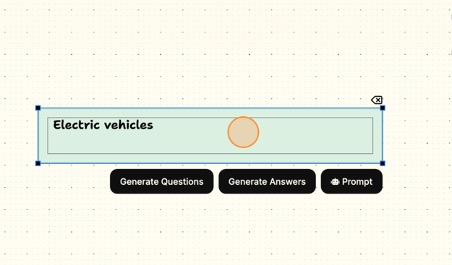
- Type “C” and click anywhere on the board.
- Type your desired topic.
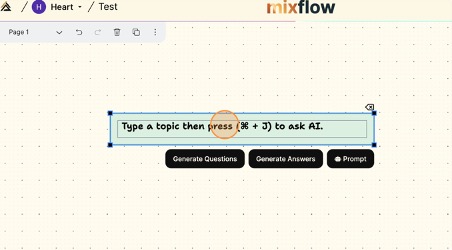
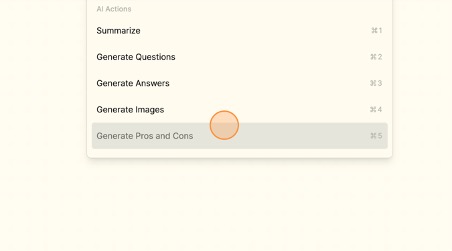
- Press CMD + J and choose GENERATE PROS AND CONS.
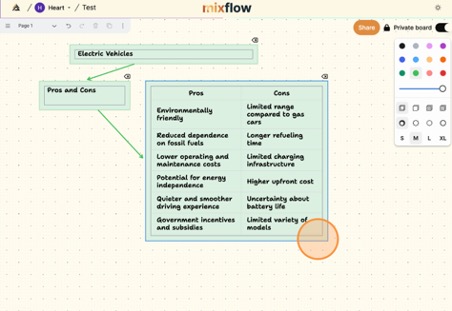
- Wait for the list of pros and cons to appear.
Chat with YouTube
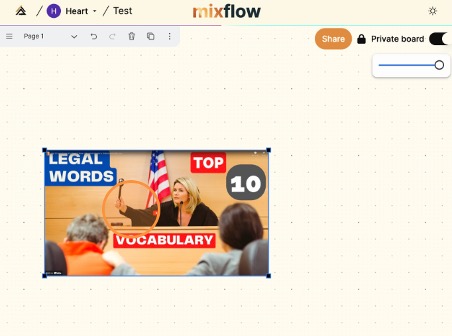
- Copy the YouTube video’s link and paste it anywhere on the board.
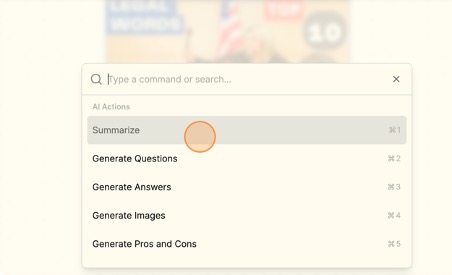
- Press CMD + J and choose SUMMARIZE.
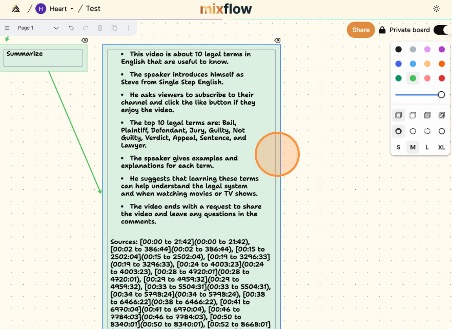
- Wait for the summary to be generated.
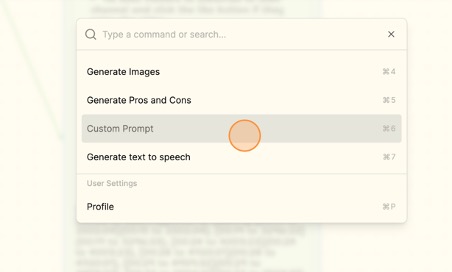
- Feel free to chat with it or ask more questions by simply clicking CMD + J and CUSTOM PROMPT.
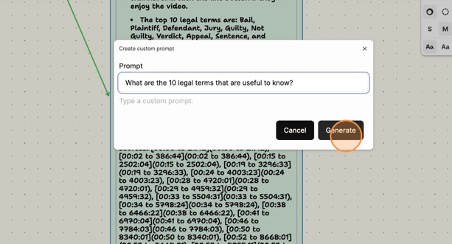
- Type your question in the prompt field and click GENERATE.
- It will give you an answer based on the video.
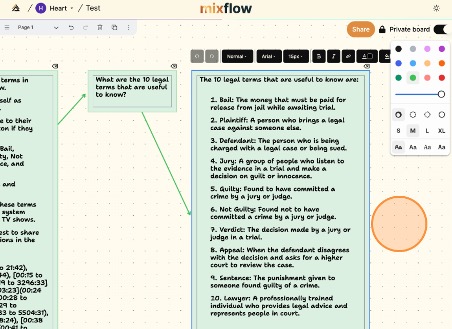
Chat with Microsoft Documents and PDF
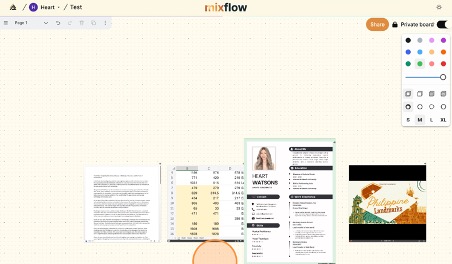
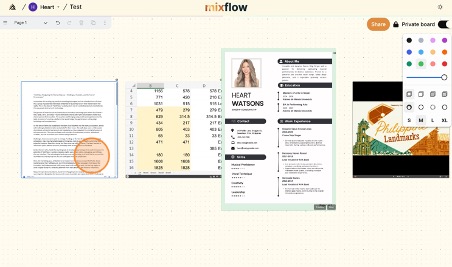
- Drag and drop the file/s anywhere on the board.
- Click on the file you want to work on.
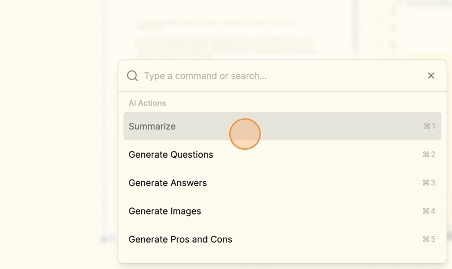
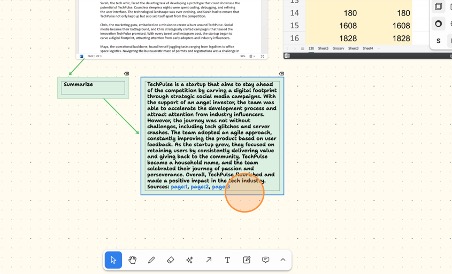
- Press CMD + J and choose SUMMARIZE.
- Wait for the summary to appear.
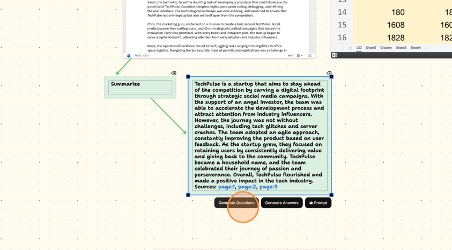
- If you want to dig deeper, you can generate questions and answers out of the file. Simply hover over the text box and click GENERATE QUESTIONS.
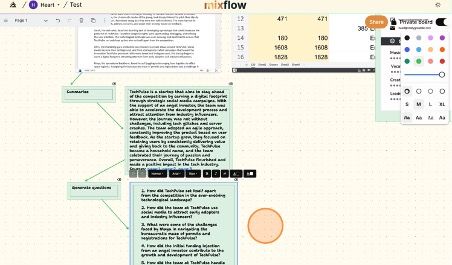
- Wait for the questions to appear.
- You can click “generate answers” afterward. However, if you have your own question, you can ask any question through CUSTOM PROMPT.
- Click on the file.
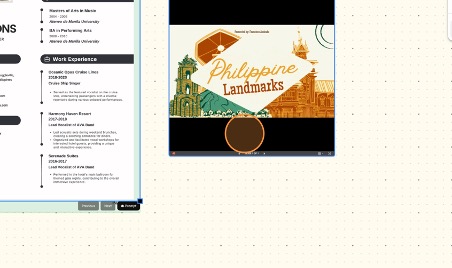
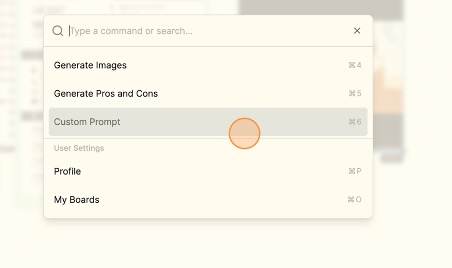
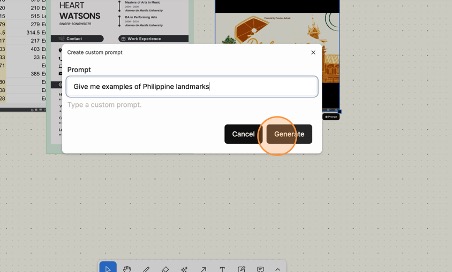
- Press CMD + J and choose CUSTOM PROMPT.
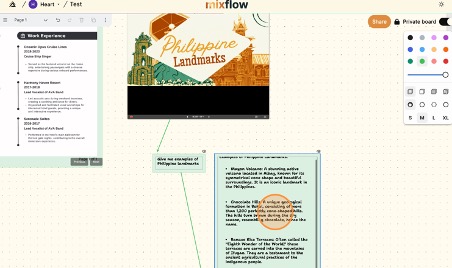
- Type your question and click GENERATE and wait for the response to appear.
Chat with Any Website
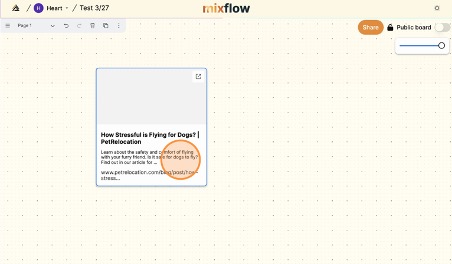
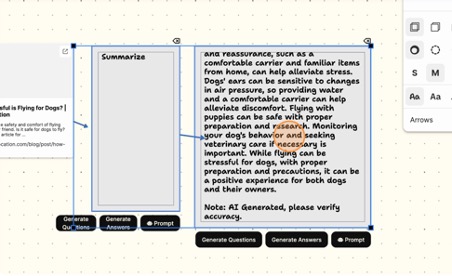
- Paste the link to any website that you want to interact with anywhere on the board.
- Press CMD + J and click SUMMARIZE.
- It will show the summary of the website’s content.
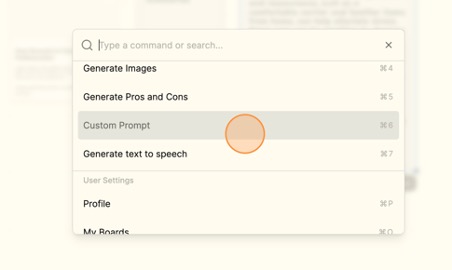
- If you have additional questions, simply press CMD + J and click CUSTOM PROMPT.
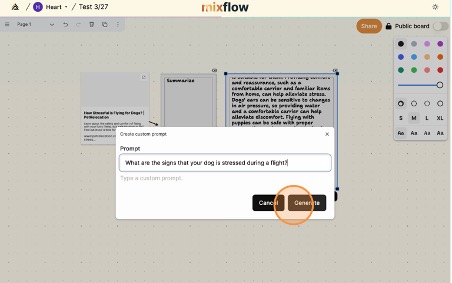
- Type your question and click GENERATE.
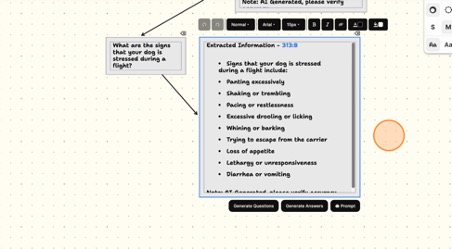
- It will show you the extracted information from the website that answers the question.

Create Social Media Ads
- Paste the picture of your product/s anywhere on the board.
- Press CMD + J and click GENERATE BACKGROUND DESIGN.
- Type your prompt in the image prompt field and click GENERATE.
- It will show you the photo it generated based on your prompt.
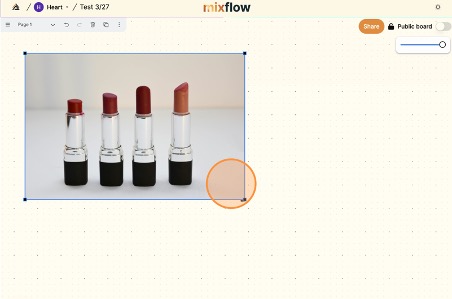
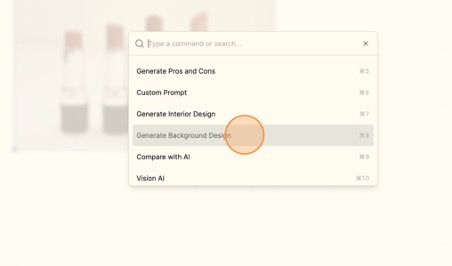
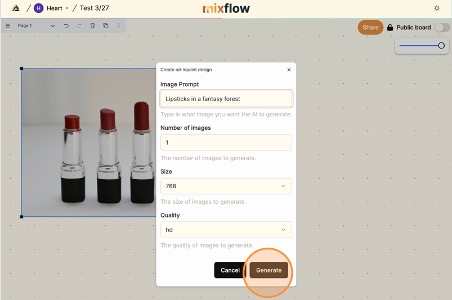
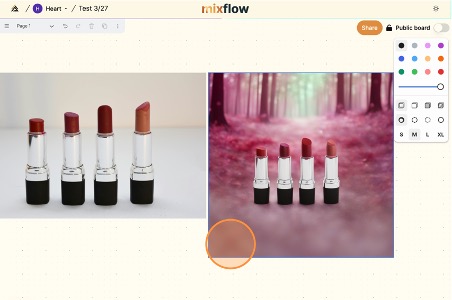
Doodle to Reality
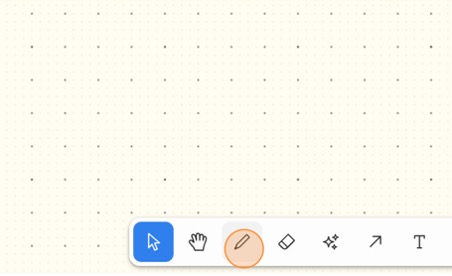
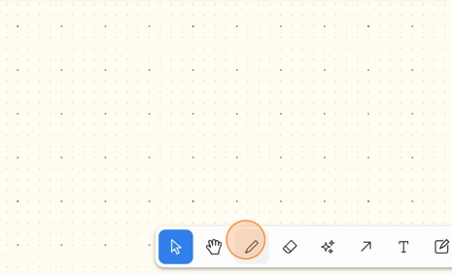
- Click on the pen icon in the toolbar.
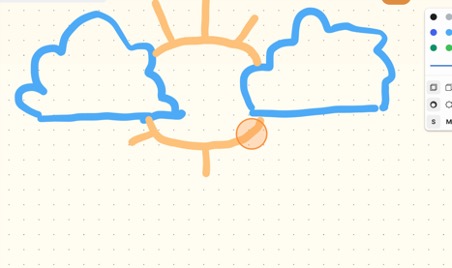
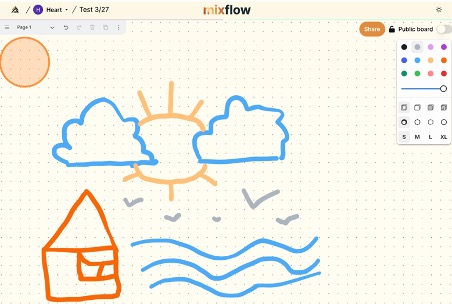
- Start doodling.
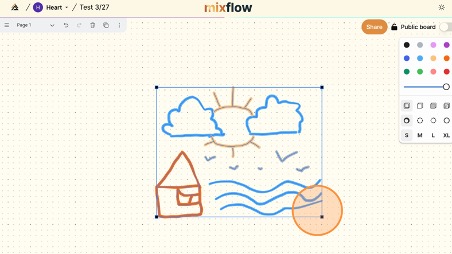
- Once finished, highlight the whole doodle.
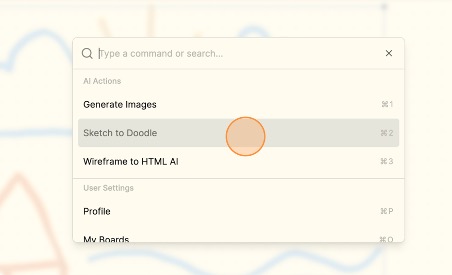
- Press CMD + J and click SKETCH TO DOODLE
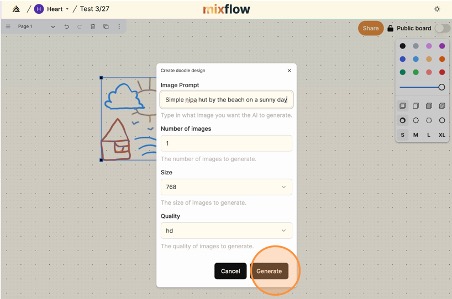
- Type your prompt in the prompt field and click GENERATE.
- Wait for it to show you the result.
AI Interior Designs
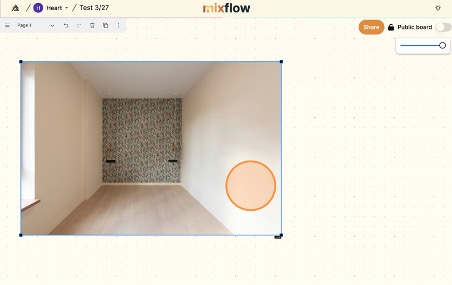
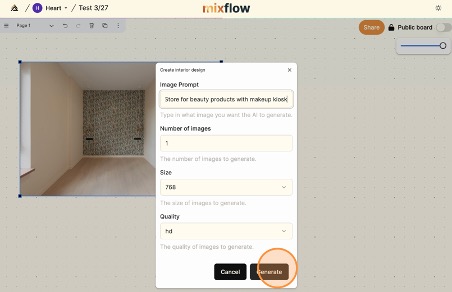
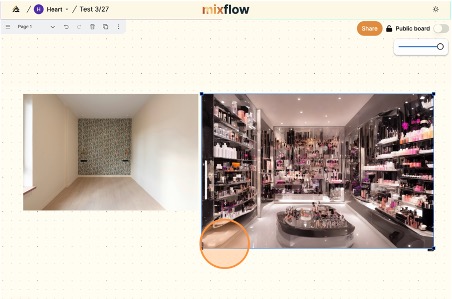
- Drag and drop a photo of the room/area you wish to improve.
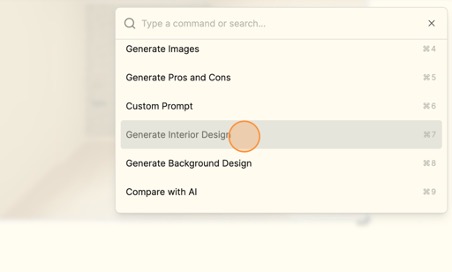
- Press CMD + J and click GENERATE INTERIOR DESIGN.
- Type your prompt in the image prompt field and click GENERATE.
- Wait for it to show the result.
Generate Images
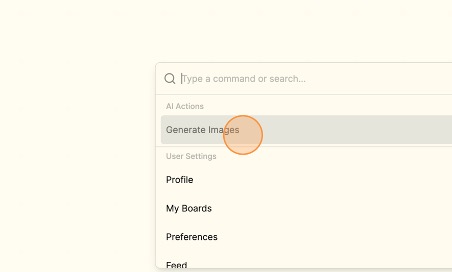
- Click anywhere on the board. Press CMD + J and click GENERATE IMAGES.
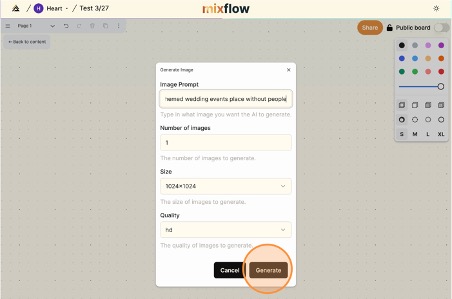
- Type your prompt and click GENERATE.
- Wait for it to show the result.
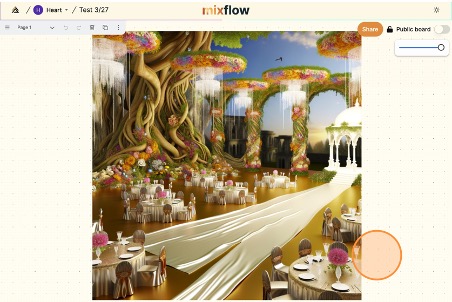
Real-Time Collaboration
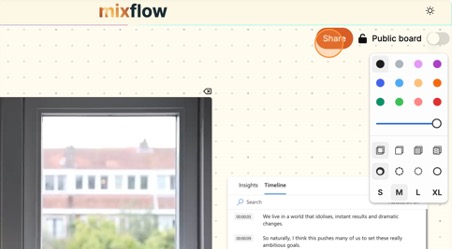
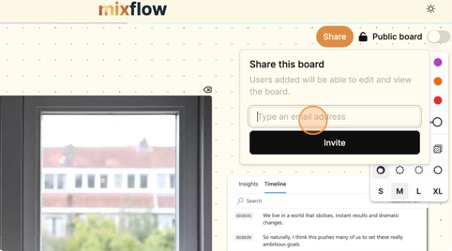
- Click SHARE.
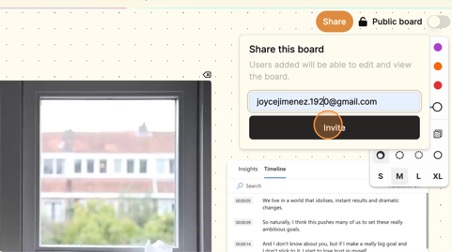
- Type the collaborator’s email address.
- Click INVITE. A link will automatically be copied to your clipboard. Send this link to the collaborator.
- You can now see 2 users on the board, and you can also see what the collaborator is doing real-time.
Captions
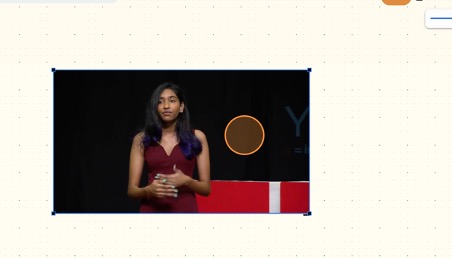
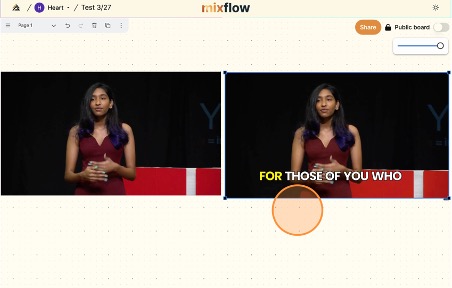
- Drag and drop a video.
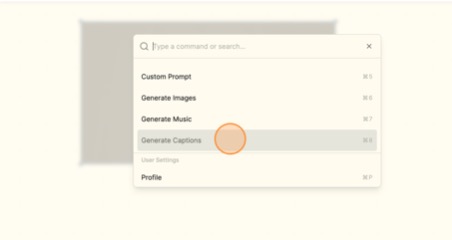
- Press CMD + J and click GENERATE CAPTIONS.
- Wait for the new video with captions to appear.
Video Insights
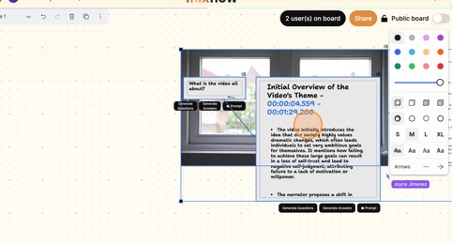
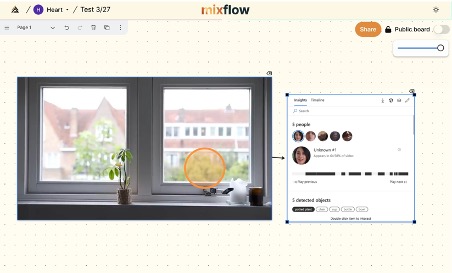
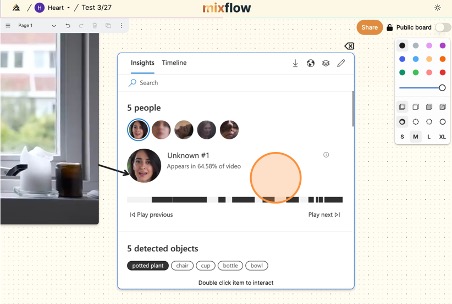
- Drag and drop a video and it will show you the video insights and timeline.
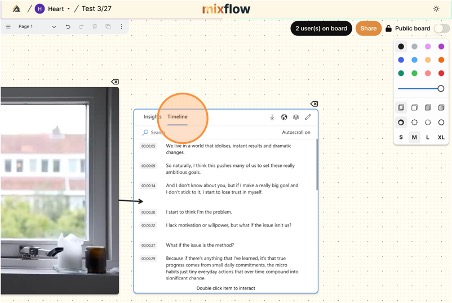
- Here’s a closer look. Navigate and explore.
- Go to TIMELINE to see the transcription and navigate the video by clicking on the lines.
HTML Wireframe
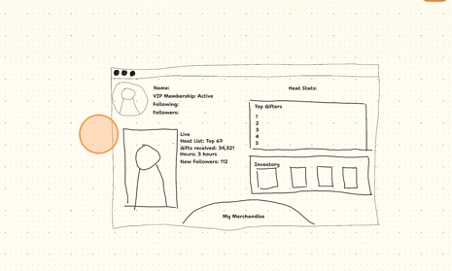
- Click on the pen tool to start sketching.
- Draw your wireframe.
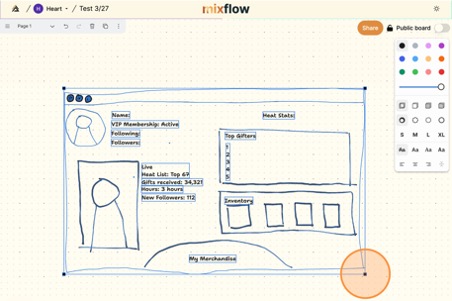
- Highlight the whole sketch.
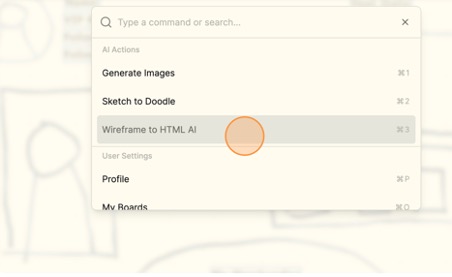
- Press CMD + J and click WIREFRAME TO HTML AI.
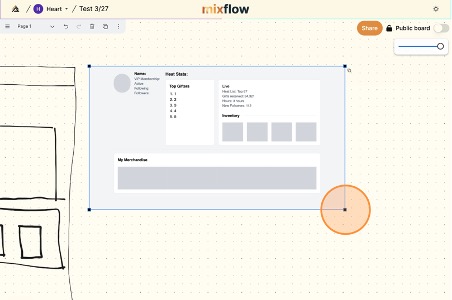
- Wait for it to show you the result.
- Copy the code by clicking the copy button.
- You can now use the code.
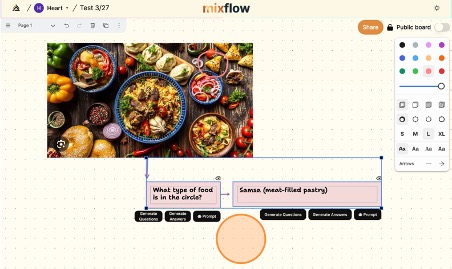
Vision AI
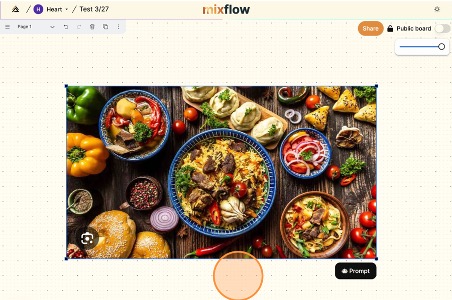
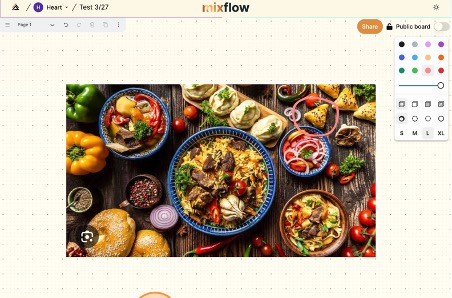
- Drag and drop a photo with the item (or something) you’re trying to identify.
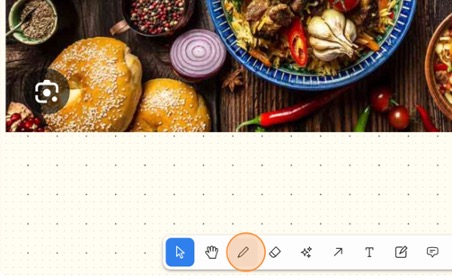
- Click on the pen tool.
- Encircle the part of the picture that you’re trying to identify.
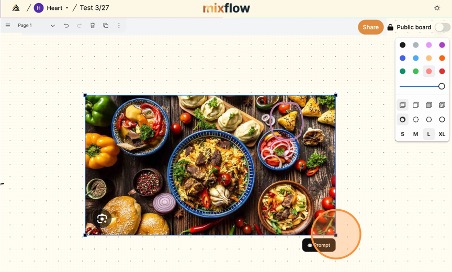
- Highlight the whole picture. Make sure to include the circle you created.
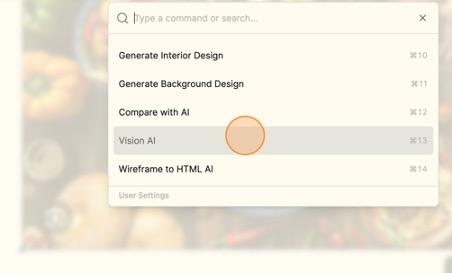
- Press CMD + J and click VISION AI.
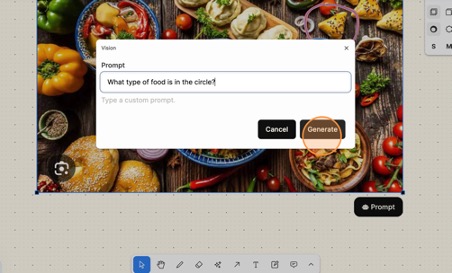
- Type your question in the prompt field.
- Wait for it to answer your question.
Chat with an Audio File
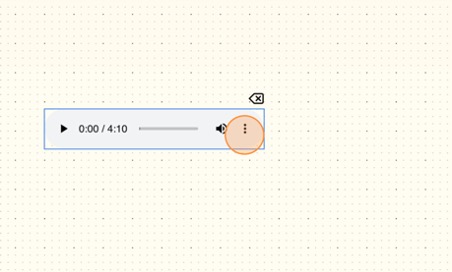
- Drag and drop an audio file.
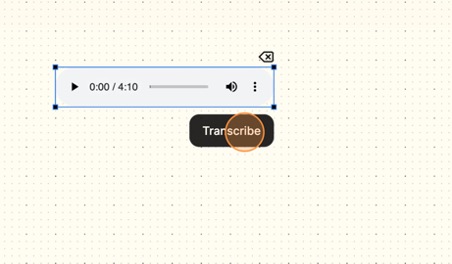
- Click TRANSCRIBE.
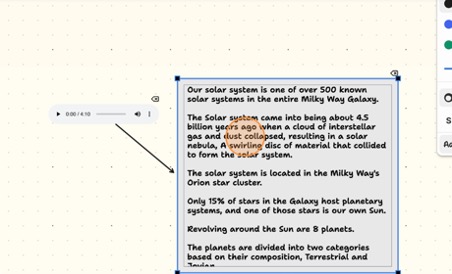
- Wait for the transcription to appear.
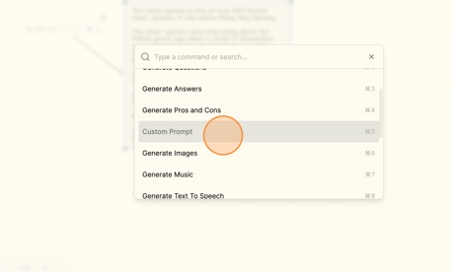
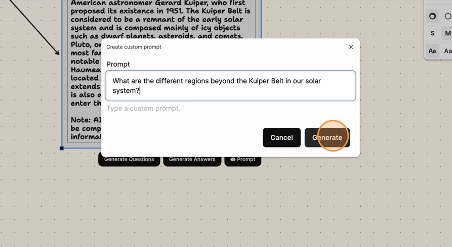
- Click on the transcription, press CMD + J, and choose CUSTOM PROMPT.
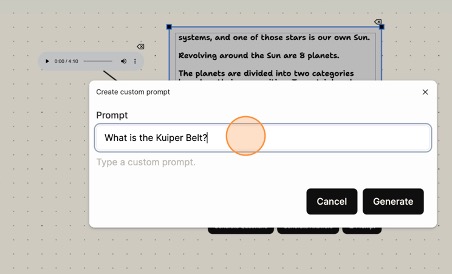
- Type your question in the prompt field.
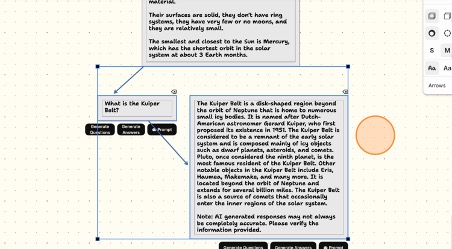
- Wait for it to answer your question.
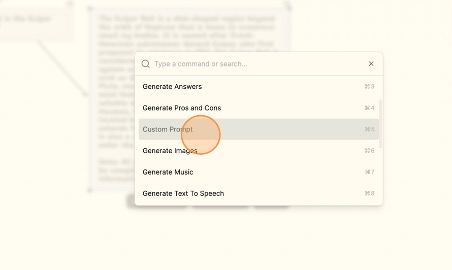
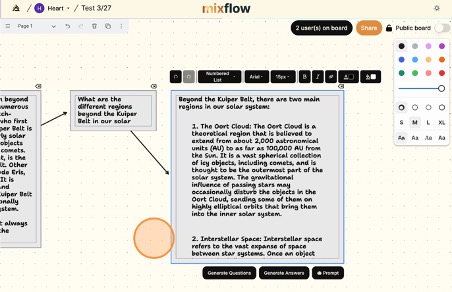
- If you have a follow-up question, press CMD + J and choose CUSTOM PROMPT again.
- Type your question in the prompt field and click GENERATE.
- Wait for it to show the answer.
Ask AI to Create an Audio File
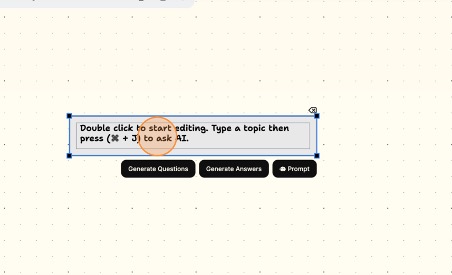
- Press C and click anywhere on the board.
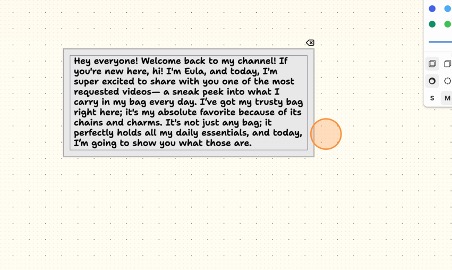
- Type the script.
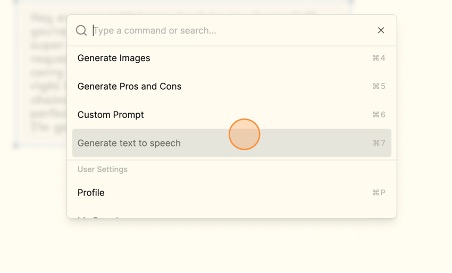
- Press CMD + J and click GENERATE TEXT TO SPEECH.
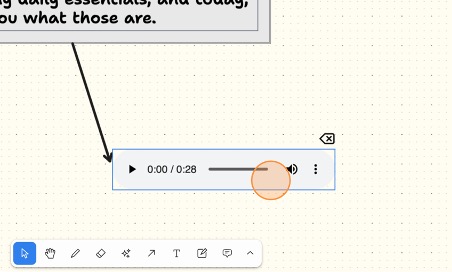
- Wait for it to generate an audio file from the script you provided.
Compare AI
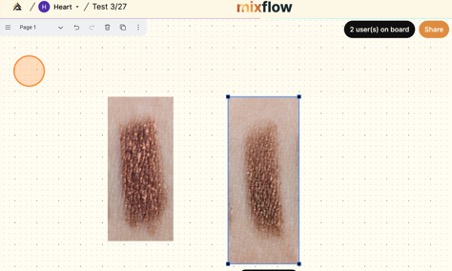
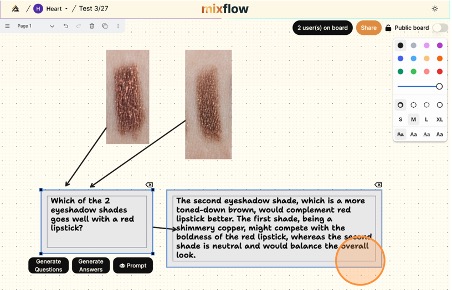
- Drag and drop 2 photos.
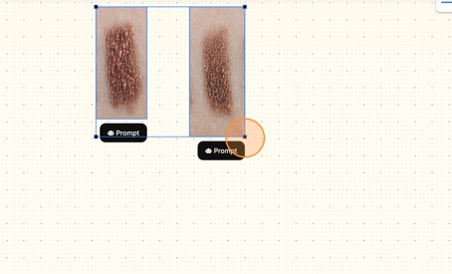
- Highlight both photos.
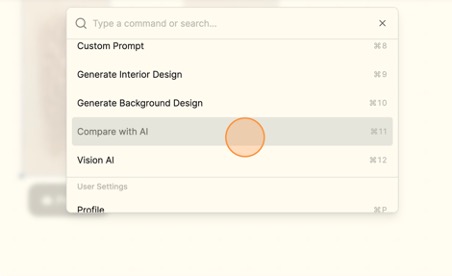
- Press CMD + J, and click COMPARE WITH AI
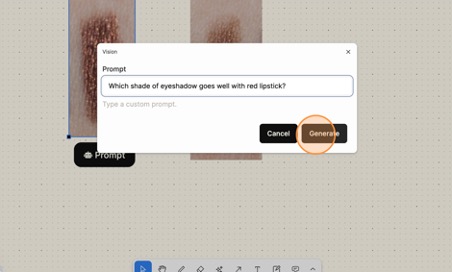
- Type your question or prompt in the prompt field.
- Wait for it to answer your question.
Remove Background
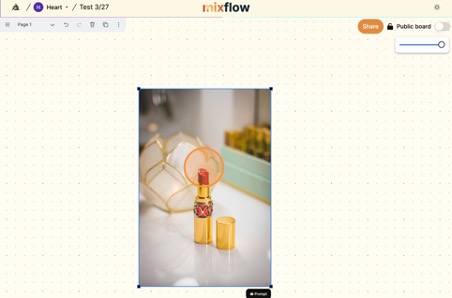
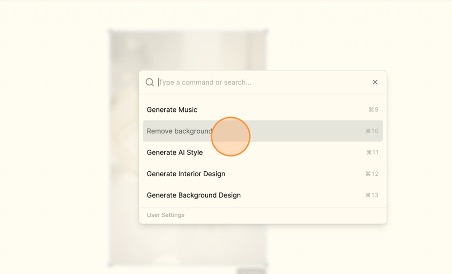
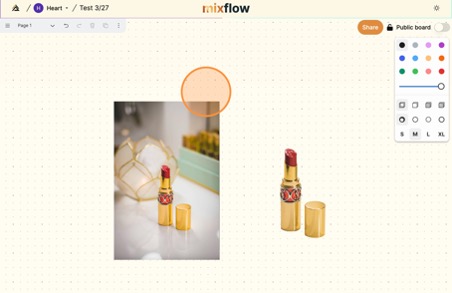
- Drag and drop a photo.
- Press CMD + J and click REMOVE BACKGROUND.
- Wait for it to show you the result.
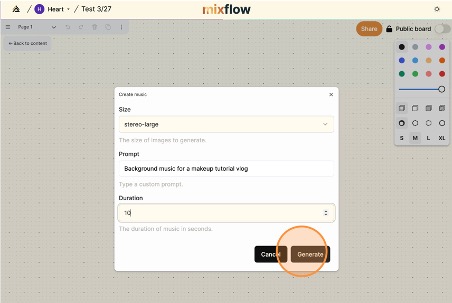
Generate Music
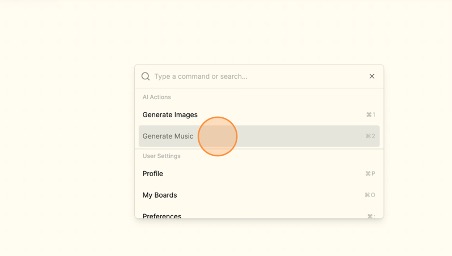
- Press CMD + J and click anywhere on the board.
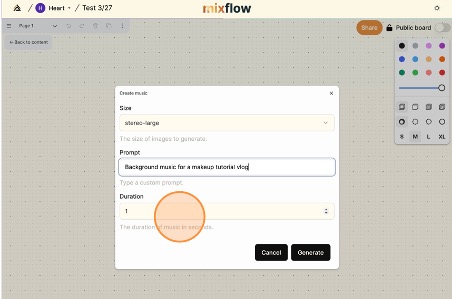
- Type your prompt in the prompt field.
- Click GENERATE.
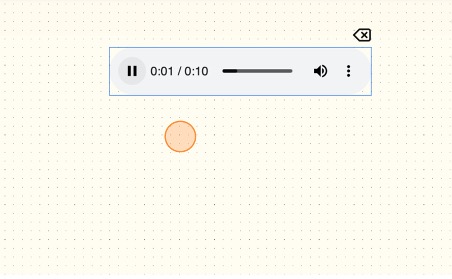
- Wait for the audio file to appear.
Generate AI Style
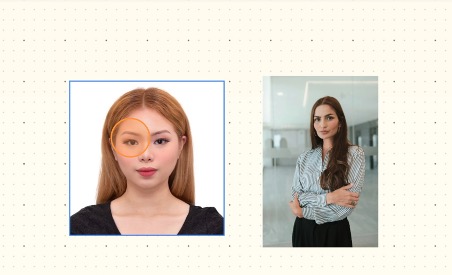
- Drag and drop 2 photos.
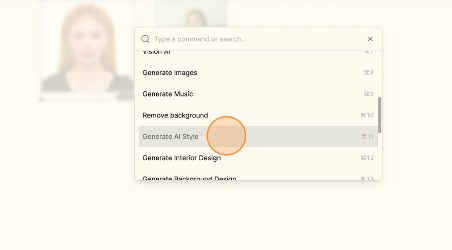
- Press CMD + J and choose GENERATE AI STYLE.
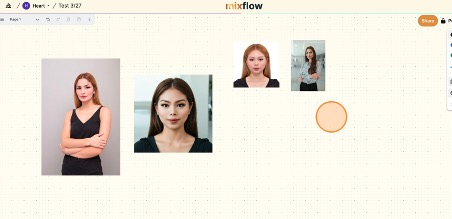
- Wait for the photos to appear.